5 Ways to Reduce PDF File Size
Practical tips to keep your PDFs small without sacrificing quality. Learn why PDFs get bloated and how to fix it.
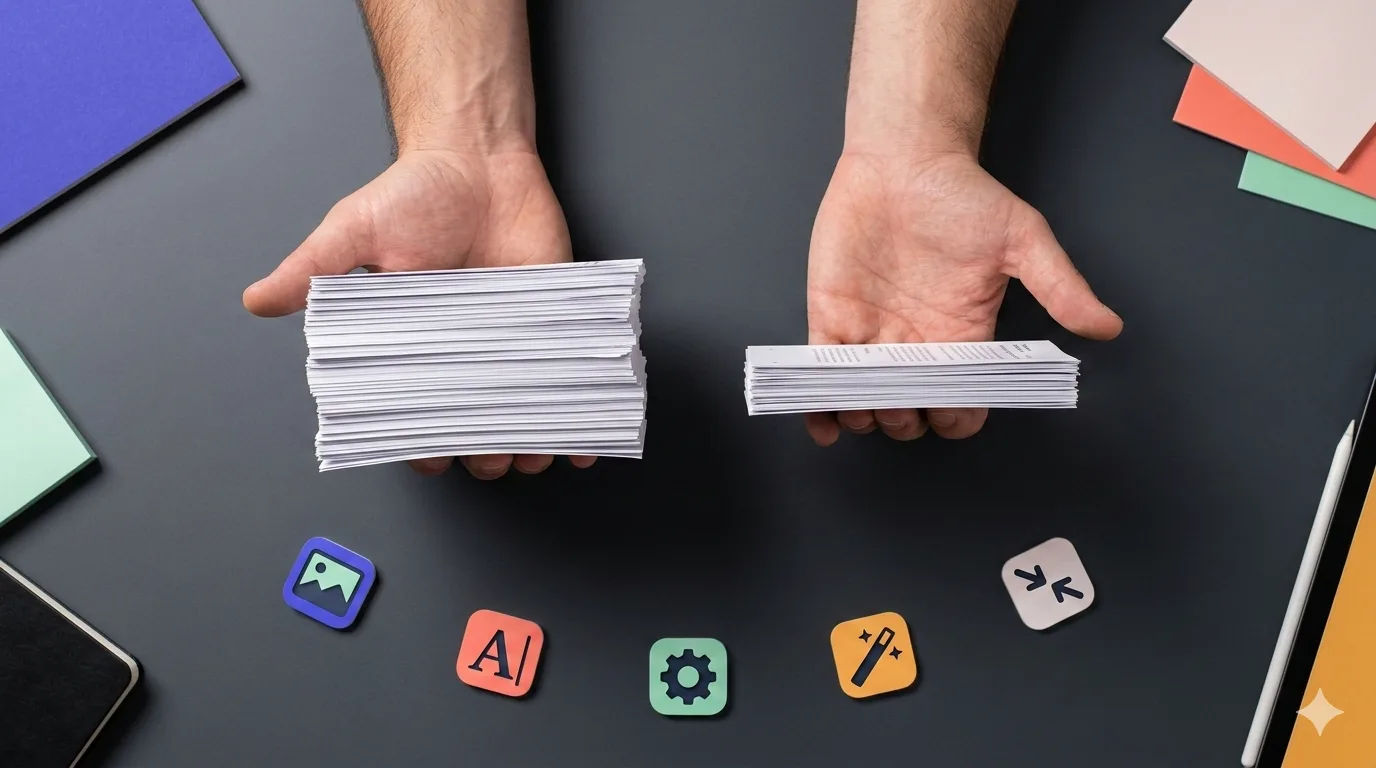
PDFs have a tendency to balloon in size. A simple 10-page report can easily reach 50 MB if it contains high-resolution images, embedded fonts, and layers of metadata. Here are five practical ways to keep your PDFs lean.
1. Compress Images Before Embedding
Images are the single biggest contributor to PDF file size. A full-resolution photo from a modern camera can be 5–10 MB on its own. When you embed several of these into a document, the size adds up fast.
What to do:
- Resize images to the dimensions they'll actually be displayed at
- Use JPEG compression for photos (quality 80 is usually indistinguishable from 100)
- Use PNG only when you need transparency
- Consider 150 DPI instead of 300 DPI for screen-only documents
2. Use "Save As" Instead of "Save"
Most PDF editors accumulate changes incrementally when you hit "Save." Each edit adds data to the file without removing the old version. Over time, this creates significant bloat.
What to do:
- Use "Save As" to create a fresh copy that only contains the current state
- This alone can reduce file size by 20–40% on heavily edited documents
3. Remove Unnecessary Elements
PDFs often contain more than meets the eye:
- Form fields that were filled out and flattened
- JavaScript embedded for interactive features
- Annotations and comments from review cycles
- Embedded multimedia like audio or video
- Duplicate fonts from merging documents with different font subsets
Review your PDF and strip out anything that isn't needed for the final version.
4. Subset Fonts Instead of Embedding Full Fonts
When a PDF embeds a font, it often includes the entire character set — hundreds or thousands of glyphs you'll never use. Font subsetting includes only the characters actually used in the document.
Most modern PDF tools do this automatically, but if you're working with older software or custom fonts, check your export settings.
5. Use a Dedicated Compression Tool
After applying the tips above, run your PDF through a compression tool for the final size reduction. PDFfast's Compress PDF tool can typically reduce file size by 30–60% with medium compression while keeping text crisp and images clear.
Quick Comparison
| Method | Effort | Typical Savings |
|---|---|---|
| Compress images before embedding | Medium | 40–70% |
| Save As instead of Save | Low | 20–40% |
| Remove unnecessary elements | Medium | 10–30% |
| Subset fonts | Low | 5–15% |
| Dedicated compression tool | Low | 30–60% |
When Size Really Matters
Some situations have strict file size requirements:
- Email attachments — most providers cap at 25 MB
- Web uploads — government portals and job sites often have 5–10 MB limits
- Cloud storage — large PDFs eat through storage quotas
- Mobile sharing — smaller files download and open faster on phones
For these cases, combine multiple techniques. Resize your images, save as a fresh copy, then compress with the Compress PDF tool.
Need More Than Compression?
If your PDF is large because it contains too many pages, consider using the Split PDF tool to extract only the pages you need. Or if you're combining files, merge PDFs first and then compress the result.
Start Optimizing
Ready to shrink your PDFs? Try the Compress PDF tool — it's free, works in your browser, and keeps your files private.