How to Merge PDFs: The Complete Guide
Learn how to combine multiple PDF files into one document. A step-by-step guide to merging PDFs online, fast and free.
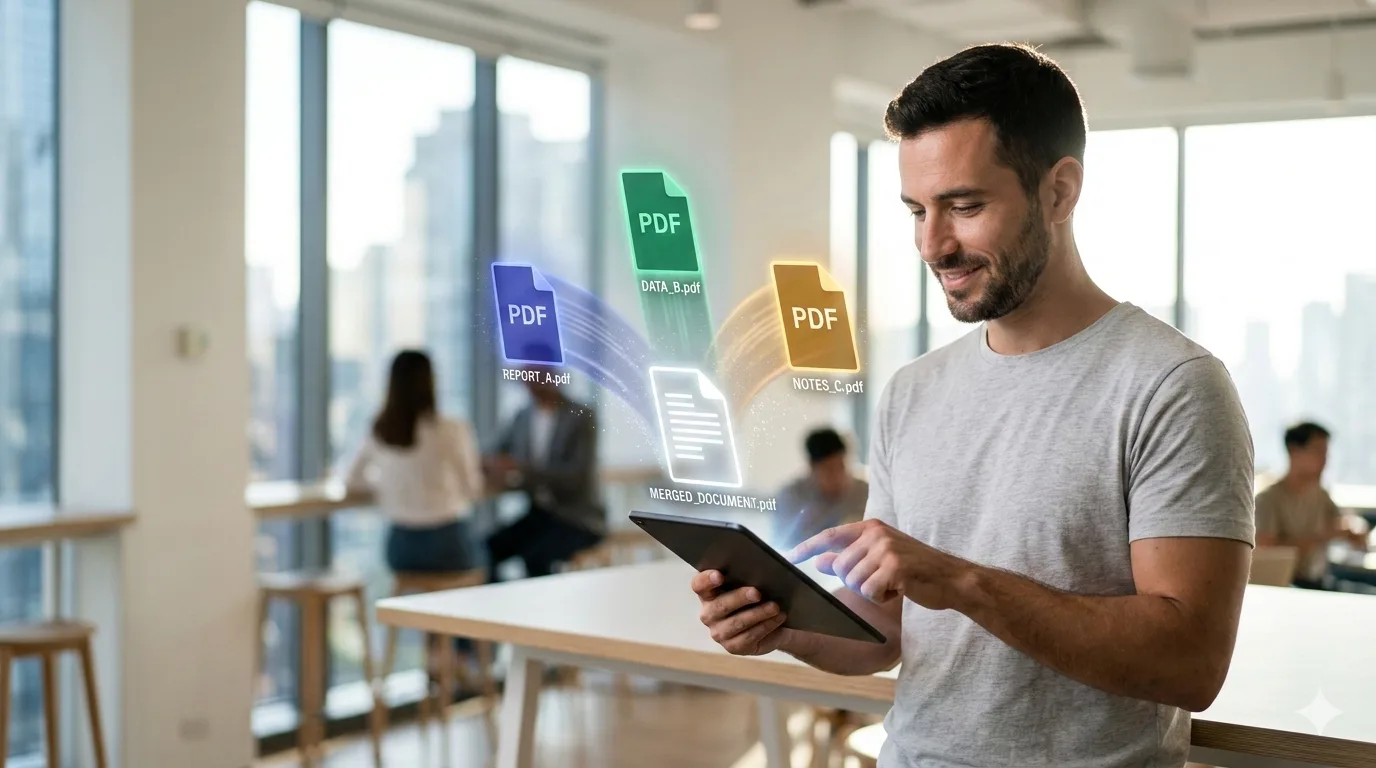
Combining multiple PDF files into a single document is one of the most common PDF tasks. Whether you're assembling a report from separate sections, combining scanned pages, or packaging documents for submission, merging PDFs saves time and keeps things organized.
Why Merge PDFs?
There are plenty of scenarios where combining PDFs makes sense:
- Business reports — merge cover page, charts, and appendices into one file
- Job applications — combine your resume, cover letter, and references
- School assignments — package multiple documents into a single submission
- Legal documents — assemble contracts, exhibits, and signatures
- Scanned documents — combine individually scanned pages into one PDF
How to Merge PDFs with PDFfast
- Open the Merge PDFs tool
- Drag and drop your PDF files onto the upload area
- Reorder the files by dragging them into the correct sequence
- Click merge and download your combined PDF
Everything happens in your browser — your files never leave your device. This means instant processing and complete privacy.
Tips for Better Merges
Get the Page Order Right
Before merging, plan your page order. Most merge tools let you reorder files before combining. It's much easier to arrange files before merging than to rearrange pages after.
Check File Sizes First
If you're merging many large PDFs, the result can be substantial. Consider using the Compress PDF tool on individual files before merging, or compress the final merged document.
Consistent Page Sizes
For the best reading experience, try to merge PDFs with similar page dimensions. Mixing letter-size and A4 documents can create an inconsistent layout.
Common Merge Scenarios
| Scenario | Files to Merge | Tip |
|---|---|---|
| Report assembly | Cover + body + appendices | Number sections before merging |
| Invoice packaging | Multiple invoices | Sort by date before combining |
| Portfolio | Work samples | Add a table of contents page |
| Application | Resume + cover letter + docs | Keep under email attachment limits |
What About Page Extraction?
Sometimes you need the opposite of merging — extracting specific pages from a PDF. Use the Split PDF tool to pull out exactly the pages you need.
Pro tip: You can split a PDF into individual pages, then merge selected pages from multiple documents to create a custom compilation.
Need More?
Merge documents regularly? PDFfast's Pro plan removes free tier limits so you can process as many files as you need, as often as you need.
Start Merging
Ready to combine your PDFs? Head to the Merge PDFs tool and drop your files in. It's free, fast, and completely private.