How to Compress a PDF Without Losing Quality
Learn how to reduce PDF file size while keeping your documents sharp. A practical guide to PDF compression for emails, uploads, and storage.
Large PDF files are a common headache. Whether you're trying to send a document via email, upload it to a portal with a file size limit, or simply save storage space, oversized PDFs get in the way.
The good news: you can dramatically reduce file size without noticeable quality loss. Here's how.
Why Are PDFs So Large?
PDF file size is driven by a few key factors:
- Embedded images — high-resolution photos and scans are the biggest culprit
- Fonts — PDFs often embed entire font families, even if only a few characters are used
- Metadata — editing history, annotations, and form data add up
- Redundant objects — repeated elements that could be deduplicated
A single scanned page can easily exceed 5 MB. A 20-page document with photos? That can hit 50–100 MB.
Compression Levels Explained
Most PDF compression tools offer different quality presets. Here's what they typically mean:
| Level | Best For | Typical Reduction |
|---|---|---|
| Low | Archival, print-quality documents | 10–30% |
| Medium | General sharing, email attachments | 30–60% |
| High | Web uploads, maximum size reduction | 60–80%+ |
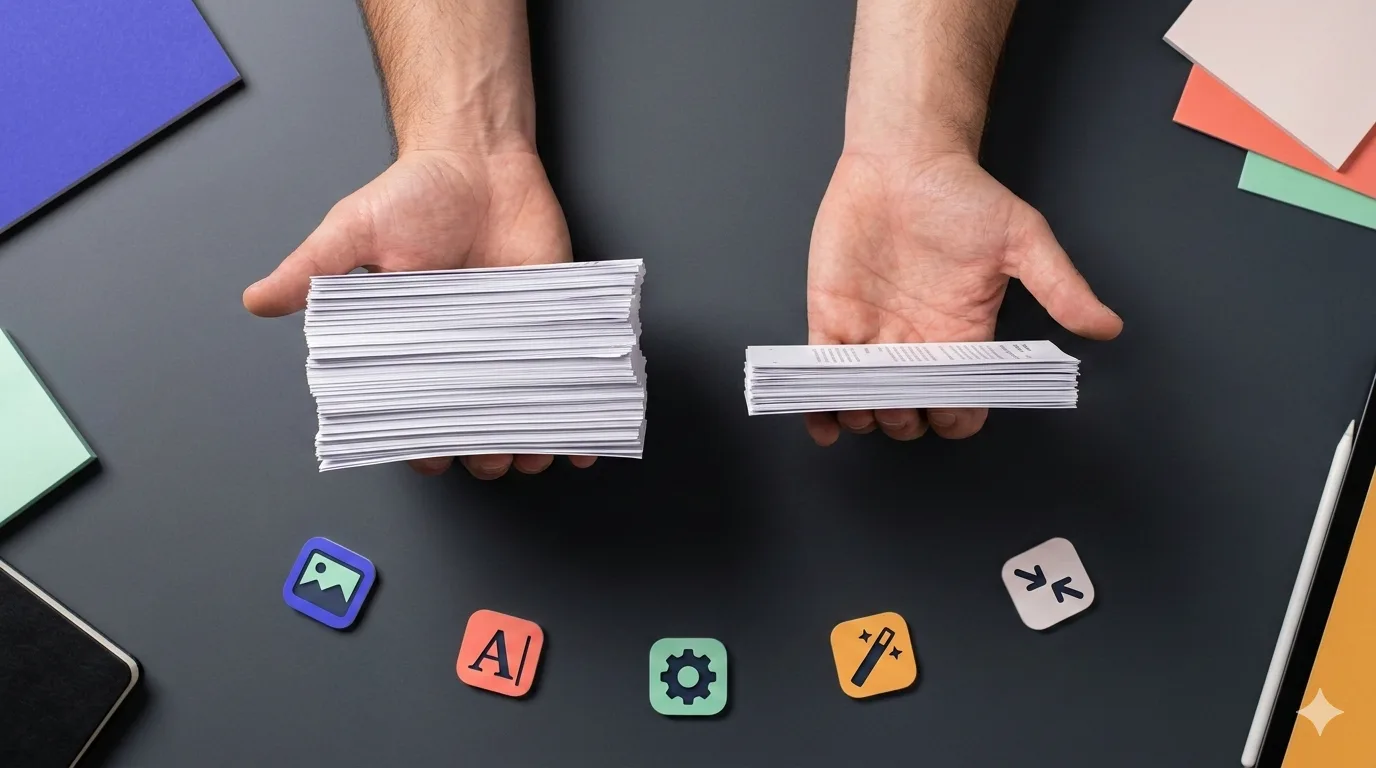
Medium compression is the sweet spot for most use cases — it significantly reduces file size while keeping text crisp and images clear.
How to Compress a PDF with PDFfast
- Open the Compress PDF tool
- Drop your PDF file onto the upload area
- Choose your compression level
- Download your compressed file
The entire process happens in your browser — your file is never uploaded to a server. This means faster processing and complete privacy.
Tips for Smaller PDFs
Beyond compression, here are a few ways to keep your PDFs lean from the start:
- Use "Save As" instead of "Print to PDF" — printing to PDF often creates larger files because it rasterizes vector content
- Resize images before inserting — don't embed a 4000×3000 photo when the document only displays it at 800×600
- Remove unnecessary pages — use the Split PDF tool to extract only the pages you need
- Avoid scanning at maximum DPI — 150–200 DPI is sufficient for most documents; 300 DPI is only needed for print
When to Use High Compression
High compression is worth it when:
- You're uploading to a portal with a strict file size limit (e.g., 5 MB)
- The document is primarily text-based and images aren't critical
- You need to email multiple documents and want to stay under attachment limits
Pro tip: If you regularly work with large PDFs, consider compressing them as part of your workflow. It saves time later when you need to share or archive them.
Need More?
Working with lots of PDFs? PDFfast's Pro plan lets you process files without the free tier limits. Compress, merge, and split as many documents as you need.
Start Compressing
Ready to shrink your PDFs? Head to the Compress PDF tool and drop your file in. It's free, fast, and private.